
Heal dust, hairs
and scratches.
Remove specks by hand, or let EmulLab mark likely dust for you to check first.
Heal a speck or a hair
- In Edit, click the Heal tab. Click 100% in the toolbar (or scroll over the photo) to see it at 100%; in the Heal tab a click on the photo heals.
- Choose Heal at the top of Healing.
- Make the Brush Radius a little larger than the speck (it starts at 12 px, from the circle’s center to its edge): [ ] make it smaller or larger.
- Click a speck, or drag along a hair or scratch. It’s filled to match what’s around it.
- Each heal is listed under Spots with a close-up. Click one to change it; Delete removes it.
Find Likely Dust
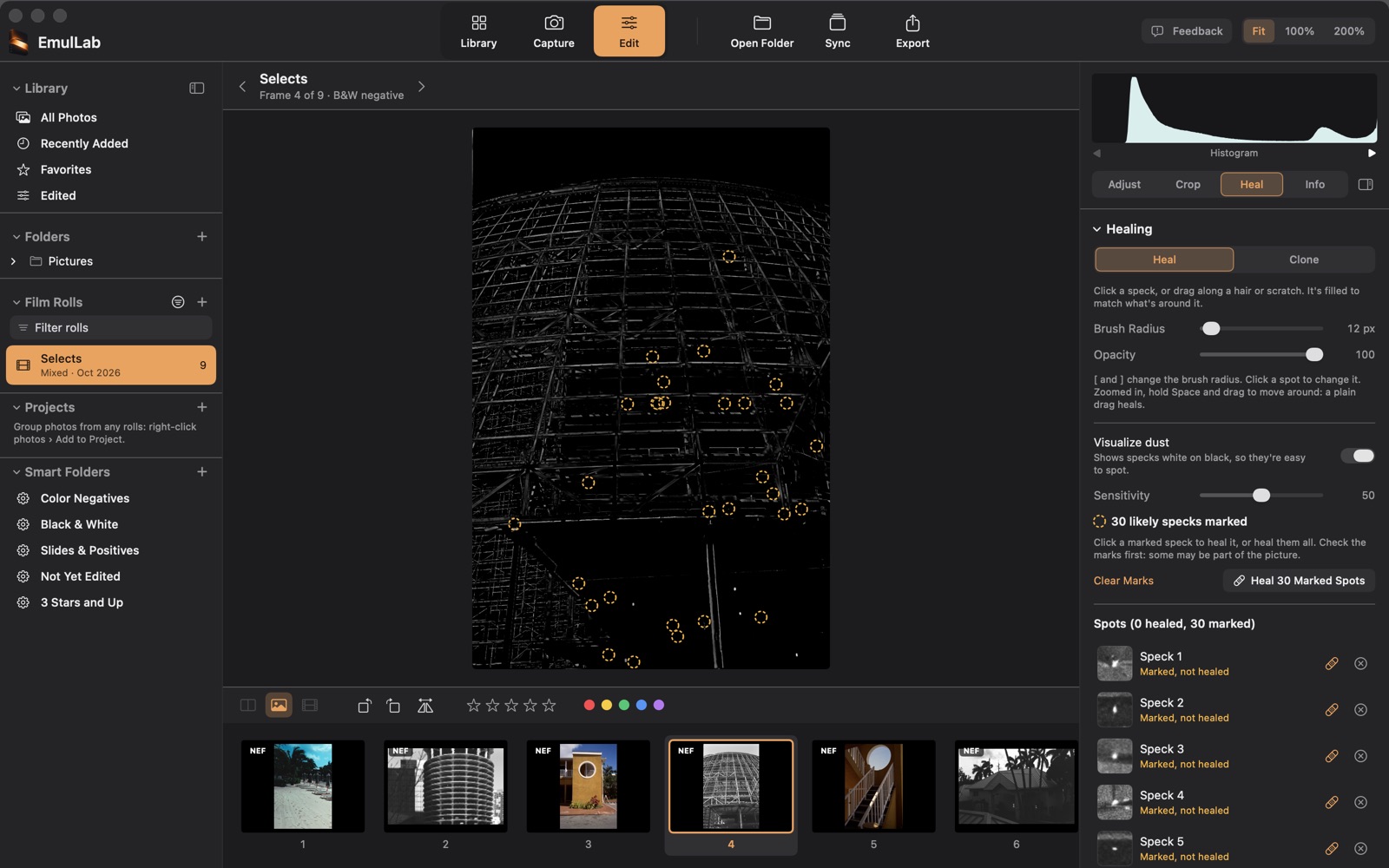
- Click Find Likely Dust. Likely specks get a dashed circle.
- Check the marks: some may be part of the picture. Unmark those with × in the list.
- Click a marked speck to heal it, or click Heal n Marked Spots to heal them all. The panel then says how many were healed; click Find Likely Dust again to look for more.
- Sensitivity sets how faint a speck gets marked. If too few or too many are marked, move Sensitivity, then click Find Again beside the marks: it marks at the new setting in place of the old marks. Spots already healed stay.
Clone
Choose Clone to copy another part of the picture as it is. First ⌥-click (or Control-click) where to copy from, then click or drag; later spots keep the same offset. Feather sets how soft the edge is. Esc forgets the source.
Visualize Dust
Turn on Visualize dust to show specks white on black, so they’re easy to see. Sensitivity changes how faint a speck shows. Turn it off to see the photo again.
Change, hide or remove a spot
Click a spot on the photo or in the list to select it. Drag it to move it, drag its knob to resize it, and for a clone, drag its dashed circle to copy from elsewhere; the panel’s sliders then change that spot. The eye button hides a heal so you can compare. On the Adjust tab, Before (\) shows the frame with no heals at all. The … menu changes Heal to Clone or back, or removes it. Clear All removes every spot. Esc or Done goes back to the brush.
Good to know
- Heals are part of the frame’s edits: the scan itself is never changed. Before shows the scan without them; After and exports have them.
- Each frame keeps its own spots: Sync and presets don’t copy them.
- Find Likely Dust can miss specks and mark texture or edges: check before you heal them all. It marks up to 120 specks (400 on slides) and says when it stops. See known issues.
- Zoomed in, hold Space and drag to move around (a plain drag paints a stroke).
- [ ] work on any keyboard layout, including ones where you type them with Option.
Applies to EmulLab 0.9.1 (Public Beta). Updated October 9, 2026.