
EmulLab suggests.
You decide.
Find Likely Dust marks what looks like dust. Nothing is healed until you choose, and the scan file is never changed. Four steps on one black and white frame:
- 01 / Normal view
Start with the frame.
In Edit, click the Heal tab. The photo shows as it is, with the tools beside it: Heal or Clone, Brush Radius (12 px to start), Visualize dust and Find Likely Dust.
You can heal by hand right away: click a speck, or drag along a hair or scratch. It’s filled to match what’s around it. [ ] change the brush radius.
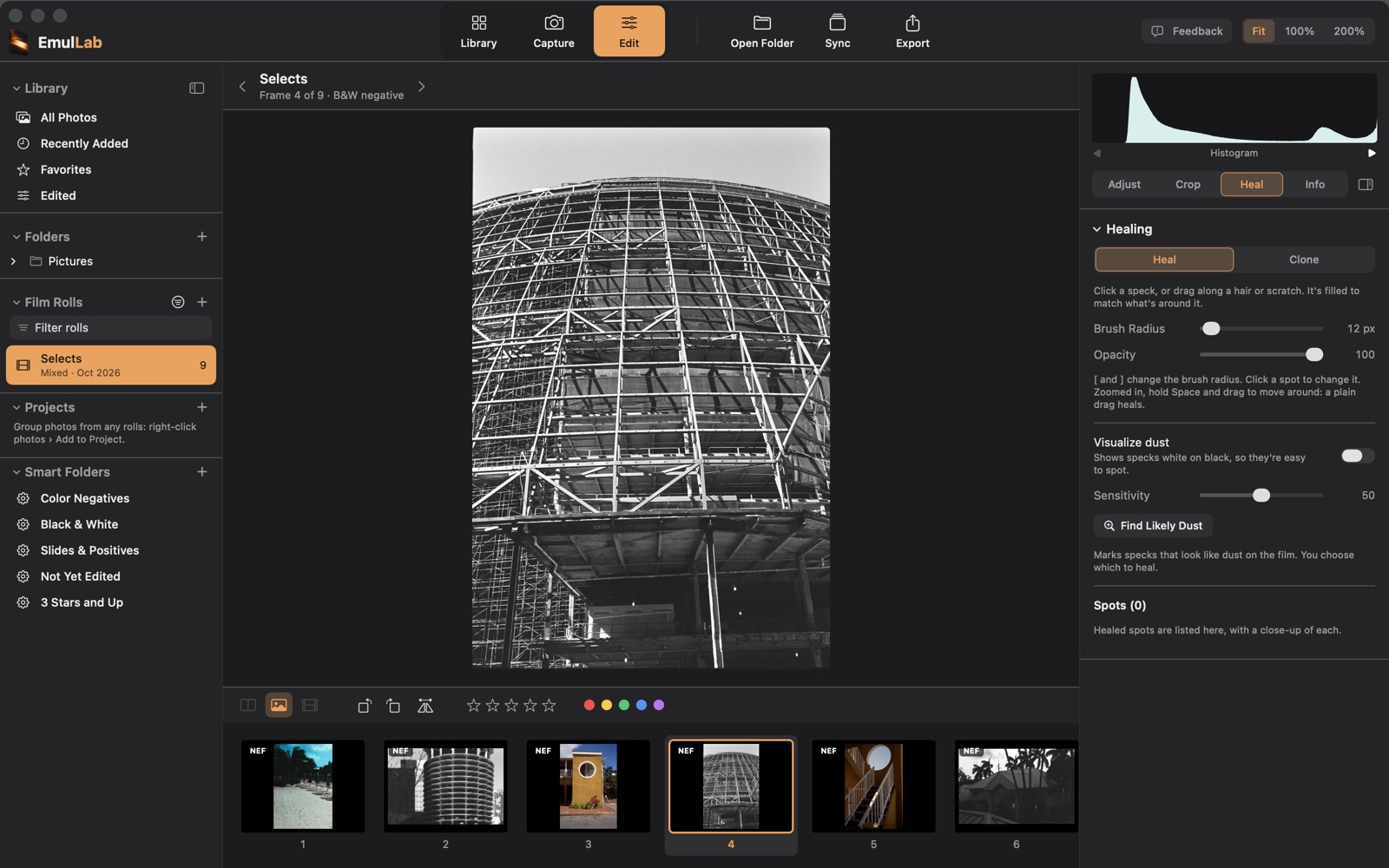
Heal tabThe Heal tab, before anything is marked. - 02 / Visualize Dust
Make the dust easy to see.
Turn on Visualize dust. The frame becomes a dust map: whatever stands out from its surroundings shows white on black, so specks are easy to spot.
Sharp edges and fine detail show too, so on a detailed frame like this one, look for small round spots. Sensitivity sets how faint a speck shows. Turn the switch off to see the photo again.
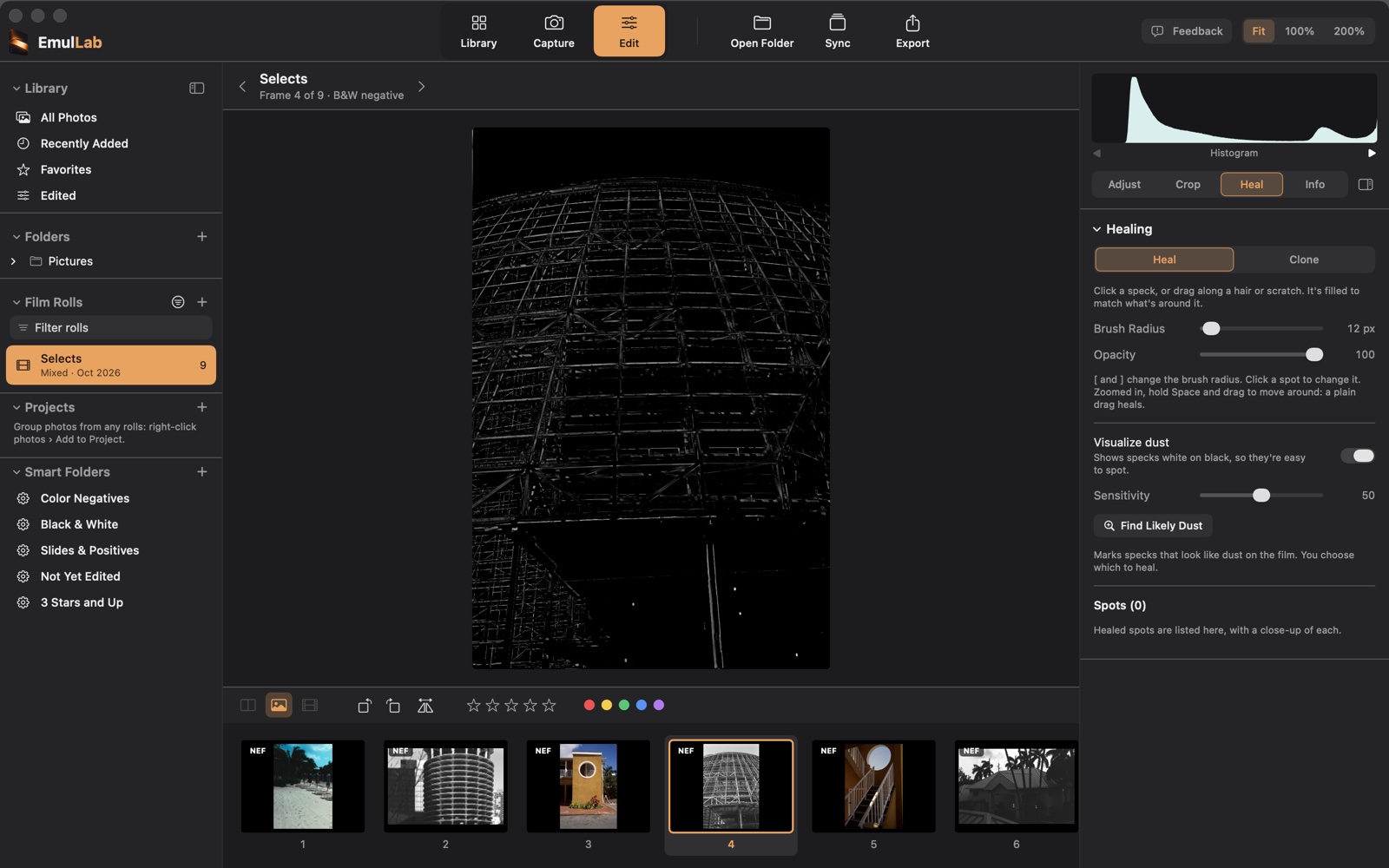
Visualize dustThe same frame as a dust map. - 03 / Find Likely Dust
Let it point out the specks.
Click Find Likely Dust. Each speck that looks like dust gets a dashed circle and a line under Spots: here, 30 of them, marked, not healed.
Check the marks first: some may be part of the picture. Click × beside a speck to unmark it, or Clear Marks to remove them all. Too few or too many? Move Sensitivity, then click Find Again.
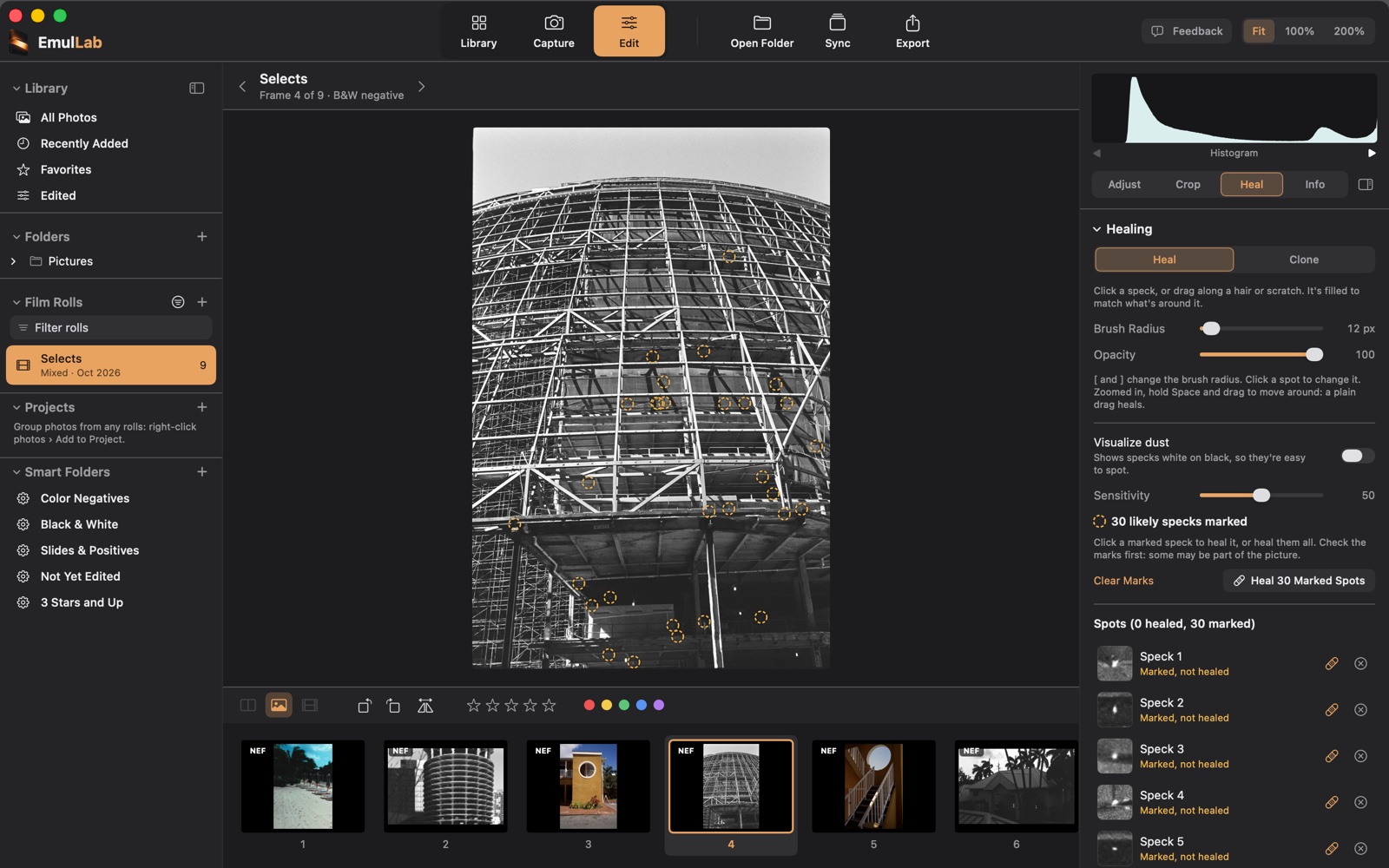
Find Likely Dust30 likely specks marked for review. Nothing is healed yet. - 04 / Heal
Heal the ones you keep.
Click a marked speck on the photo, or its bandage button in the list, to heal just that one. Or click Heal 30 Marked Spots to heal every mark at once; ⌘Z undoes it in one step.
Each heal is listed under Spots with a close-up of the speck as it was scanned. Any of them can be moved, resized, hidden to compare, or removed later. Find Likely Dust can miss specks: heal those by hand with a click.
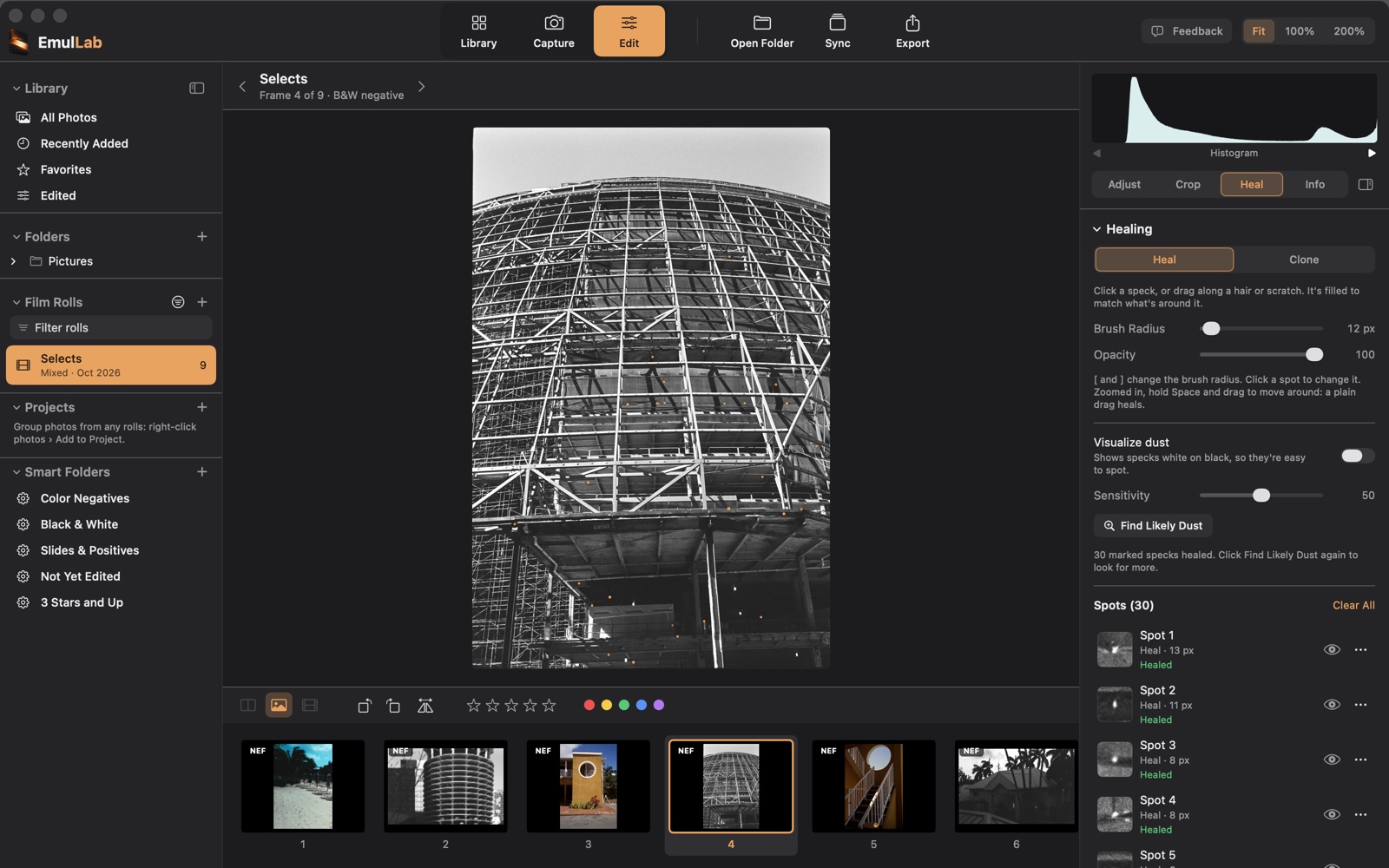
Heal Marked Spots30 marked specks healed, each listed with a close-up.
Good to know.
- The scan file is never changed. Heals are part of the frame’s edits: After and exports have them, and Before (\, on the Adjust tab) shows the scan without them.
- Each frame keeps its own spots: Sync and presets don’t copy them.
- Find Likely Dust can miss specks and mark texture or edges. It marks up to 120 specks (400 on slides) and says when it stops: heal the marks that are dust, then click Find Likely Dust again for more.
- Where Heal smudges an edge or a pattern, Clone copies another part of the picture as it is.