
A color negative is orange and backwards. Almost everything about how it looks as a photo comes from how you undo that. Here's how EmulLab does it, and why.
Start from the film itself
Every roll of color film has a strip along its edges where no light ever reached: the border around and between the frames. It's the film at zero, just the orange of the film base and nothing else.
EmulLab measures that border and treats it as neutral. Everything in the frame is balanced against it, with one black point and one white point shared by every color.
The other way is to balance each color on its own until the picture averages out to gray. It's quick, but it throws away the light you shot in. A warm evening gets pulled toward gray, and every frame on a roll comes out a little different. Balancing from the border keeps what was there. The automatic way is still there as an option if you want it.
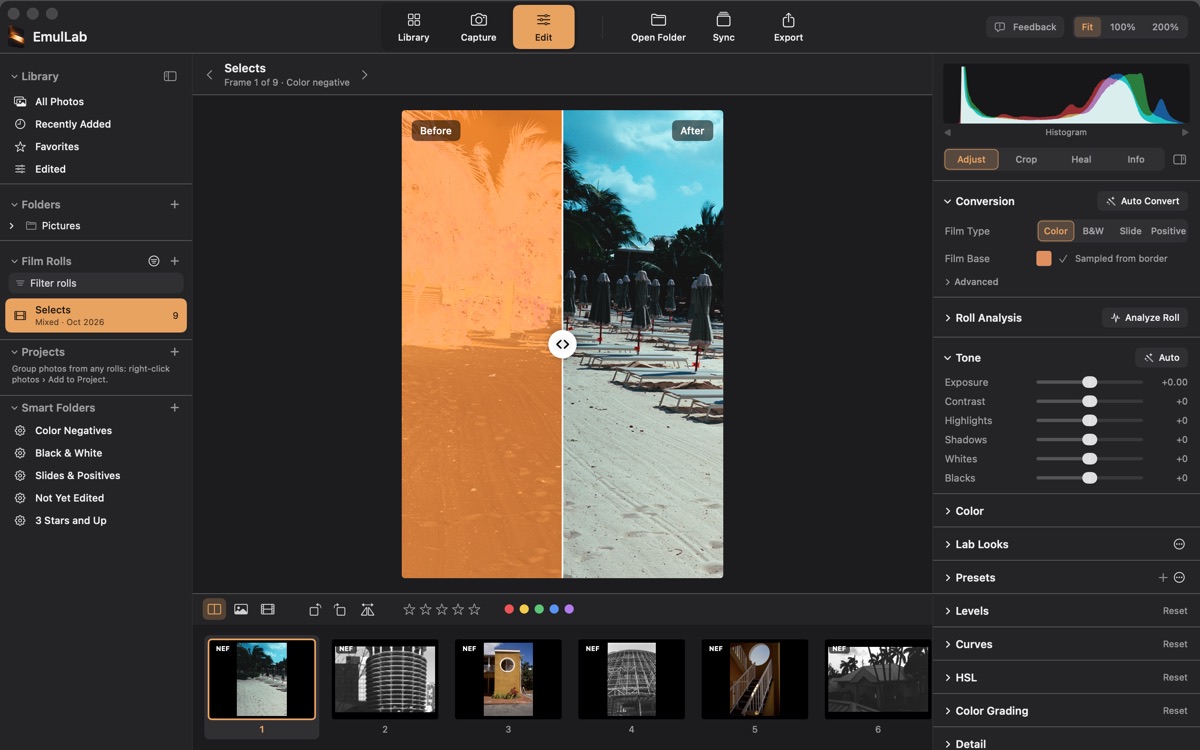
Undo the negative first
A camera's color profile is made for real scenes: skin, sky, grass. Run an orange negative through it before it's turned around, and the colors drift. Whites go pink and greens go teal. So EmulLab turns the negative into a positive in the camera's own colors first, and only then treats it as a photo.
Each film keeps its character
I don't want every film to come out looking the same. Gold 200 on a sunny beach should look warm. Portra should stay soft. So EmulLab doesn't push every highlight to pure white to match one house look.
Since 1.0, each film stock EmulLab knows has its own gray balance, made from the manufacturer's published film data, and every color negative is printed through a model of photographic paper, the way a darkroom print would be. A lot of the depth in the color comes from that print.
Your light, your camera
The light you scan with changes the colors too. EmulLab asks once what light you use and remembers it for each roll. For about fifty camera models, it also knows how that camera sees that kind of light. For other cameras, like my own Z 9, it uses the film's own balance for the light you set.
A roll, not just a frame
Shoot a roll in one light and you want it to look like one roll. Analyze Roll looks at every frame together and keeps the color consistent from one frame to the next.
Your edits stay put
When I improve the color, your edited photos don't change on their own. Every edit remembers which version of the conversion it was made with and keeps looking exactly as it did. When you want the newer color on a photo or a whole roll, Update to Current Process does it.
How I check it
Every change to the color is tested against a set of 75 simulated test scans: five film stocks, four camera and light setups, normal and overexposed, and under a second kind of light. Each is scored against what the negative itself says the colors should be. If a change makes the color worse, it doesn't ship.
Tell me what you see
If a roll comes out wrong, I want to know: Help › Send Feedback in the app, or support@emullab.com. A line about the film, the camera and the light you scanned with helps a lot.
Frank